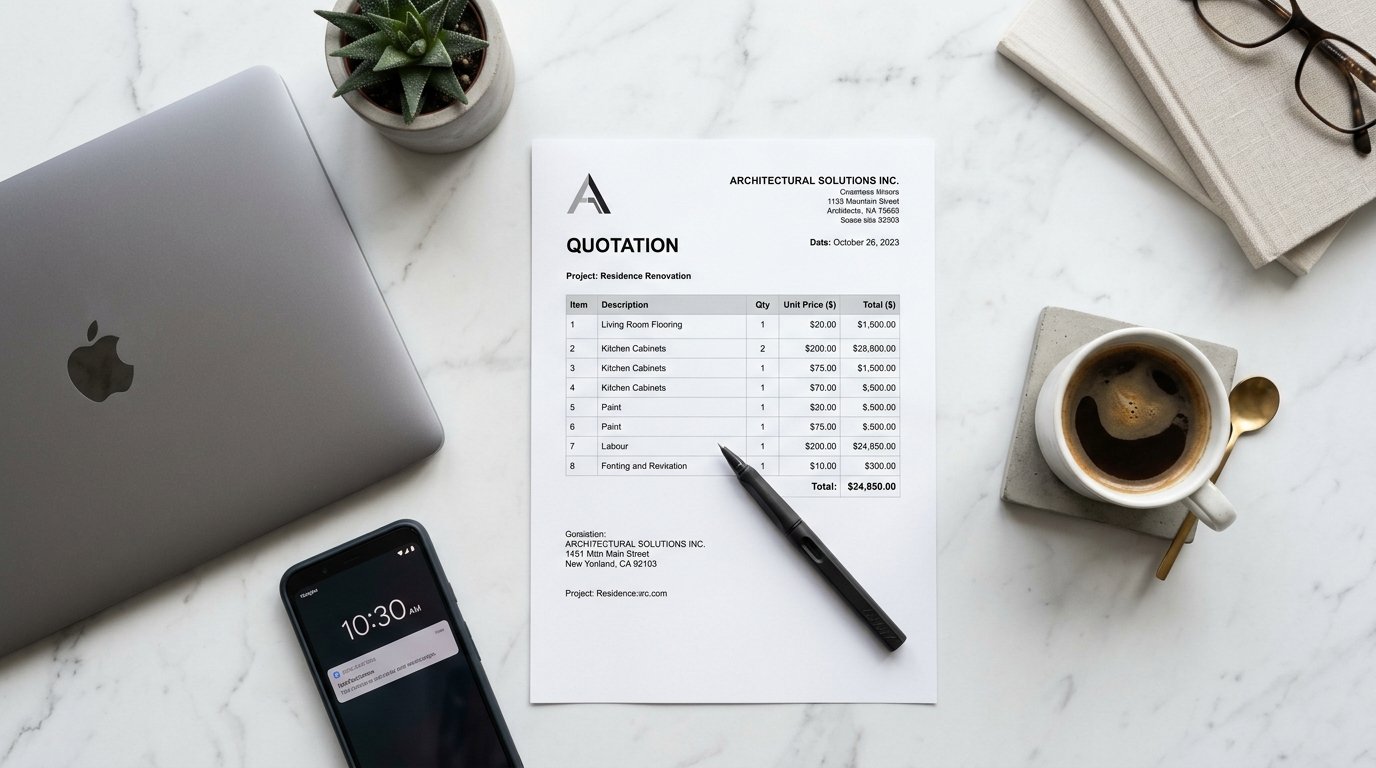
Free Quotation Maker Online – Create Professional Business Quotes Instantly
Free Quotation Maker Online — Create Professional Business Quotes Instantly
Build detailed, client-ready quotations with itemized pricing, tax, discounts, and terms. Download as a professional PDF in seconds — free, no account needed, works anywhere in the world.
What Is the Scree Tools Quotation Maker?
The Scree Tools Quotation Maker is a free, browser-based tool that lets businesses, freelancers, and service providers anywhere in the world create professional quotations without installing software, creating an account, or paying any subscription fees. Available at screewhite.shop/tools/quotation-maker, it covers the entire quotation workflow in one clean, easy-to-use interface.
A quotation — also called a quote or price proposal — is one of the most important documents in any business relationship. It sets out exactly what you are offering, at what price, under what terms, and for how long that price is valid. A well-written quotation builds confidence in your professionalism, helps clients make decisions faster, and forms the foundation of the contract or invoice that follows.
With Scree Tools, creating that quotation takes under two minutes. Enter your company details, fill in your client's information, list your services or products with unit prices, apply any applicable taxes and discounts, set a validity date, add your terms and conditions, and download a clean, print-ready PDF — all in one place, at no cost.
Quotation vs Invoice vs Receipt — Key Differences
Understanding when to use each document is essential for a professional business workflow. Here is how they differ:
| Feature | Quotation | Invoice | Receipt |
|---|---|---|---|
| Purpose | Propose price before work | Request payment after work | Confirm payment received |
| Timing | Before project starts | After work is completed | After payment is made |
| Binding | Becomes binding when approved | Legally binding request | Record of completed payment |
| Has Expiry Date | ✓ Valid Until date | Due date only | No |
| Has Terms & Conditions | ✓ Yes | Optional | No |
| Shows Payment Method | No | No | ✓ Yes |
In a typical business workflow, the order is: Quotation → Approval → Invoice → Receipt. Scree Tools provides all four document types free of charge, so you can manage your complete business document workflow from a single platform.
Key Features of the Quotation Maker
Instant PDF Download
Click Print/PDF to download a professionally formatted quotation document instantly. Ready to email or print for your client immediately.
Valid Until Date
Set an expiry date for your quote. By default it is 30 days from the quote date. Adjust it to match your business policy and pricing strategy.
Project / Subject Field
Add a project name or subject line to your quotation so the client immediately understands what the quote relates to — especially useful for agencies and consultants.
Tax & Discount
Apply a tax percentage and a discount percentage. Both calculate automatically in real time, giving an accurate subtotal and final total instantly.
Multiple Line Items
Add unlimited products or services, each with its own description, quantity, and unit price. Remove any item with the × button.
Terms & Conditions
Include your payment terms, delivery conditions, and any project-specific clauses directly on the quotation. The default reads "Payment: 50% advance, 50% on delivery."
How to Create a Professional Quotation in 6 Simple Steps
Whether you are quoting for a web development project, a construction job, a consulting engagement, or a product supply order — the process is the same and takes under two minutes:
Enter Your Company Details
Add your company name, address, and phone number at the top right of the quotation. This is your business identity on the document — make sure it is complete and accurate.
Set Quote Number and Dates
The quote number starts at QT-001 and the date is set to today automatically. Set the "Valid Until" date to define how long your pricing is guaranteed — typically 7 to 30 days depending on your industry.
Fill In Client Information
Under "Quote To", enter the client or company name, their address, and email or phone. Add a Project or Subject description so the client immediately knows what the quote covers.
Add Line Items with Pricing
Click "+ Add Item" for each service or product. Enter a clear description, quantity, and unit price. The amount column calculates automatically. Add as many items as your project requires.
Apply Tax and Discount
Enter your applicable tax rate in the Tax % field and any discount in the Discount % field. The subtotal, tax amount, and final total update in real time — no manual calculation needed.
Add Terms and Download PDF
Review or update your Terms & Conditions at the bottom, then click Print/PDF to download a professional quotation. Share it with your client via email, WhatsApp, or any messaging platform.
Who Uses a Quotation Maker?
A quotation is used across virtually every industry and profession worldwide. Here are the types of businesses and professionals who benefit most from having a fast, free quotation tool:
Web & Software Developers
Quote for website builds, app development, maintenance contracts, and custom software projects with itemized milestones.
Contractors & Builders
Provide detailed material and labor cost breakdowns for construction, renovation, and installation projects.
Designers & Creatives
Quote for logo design, branding packages, video production, photography, and other creative deliverables.
Wholesalers & Suppliers
Send product price lists and bulk order quotations to retail buyers and procurement teams globally.
Consultants & Advisors
Propose consulting fees, retainer packages, and project-based engagements with clear scope and pricing.
Auto & Repair Services
Issue repair cost estimates with parts and labor broken down separately before beginning any work.
Landscaping & Cleaning
Quote for recurring service contracts, one-time jobs, and seasonal maintenance packages with clear terms.
Educators & Trainers
Propose corporate training programs, workshop packages, and coaching engagements to business clients.
What Makes a Good Business Quotation?
Sending a quotation is not just about stating a price — it is about communicating value, building trust, and making it easy for the client to say yes. Here is what separates winning quotations from ones that get ignored:
Be specific about what is included
Vague line items like "Design Work" or "Consulting" leave room for misunderstandings that lead to disputes. Instead, write "Homepage design — 3 pages, 2 revision rounds" or "Strategic marketing consultation — 4 x 1-hour sessions". The more specific you are, the more confident a client feels approving your quote.
Set a realistic validity period
Always include a "Valid Until" date on your quotation. This creates a sense of urgency, protects you from price fluctuations in materials or labor, and gives the client a clear decision deadline. For most service businesses, 14 to 30 days is standard. For projects involving volatile material costs, 7 days may be more appropriate.
Break down costs clearly
Clients are far more likely to approve a quotation when they understand exactly what they are paying for. A single lump sum with no breakdown raises suspicion. Itemized line items with individual quantities and unit prices demonstrate transparency and make the value of your work visible.
State your terms upfront
Include your payment terms directly in the quotation. If you require a deposit before starting, state the percentage. If you have a cancellation policy, include it. Clear terms prevent misunderstandings, reduce late payments, and set professional expectations from the very first interaction.
Follow up promptly
A quotation sent and forgotten is an opportunity lost. If you have not heard back within 3 to 5 business days, follow up with a brief message referencing the quote number. Scree Tools auto-numbers your quotations starting at QT-001, making it easy to reference specific quotes in your follow-up communication.
Tips for Writing Winning Quotation Terms & Conditions
The Terms & Conditions section at the bottom of your quotation is not fine print — it is your business protection. Here are the key clauses every professional quotation should include:
Payment schedule
Specify when and how payment is due. The Scree Tools default reads "Payment: 50% advance, 50% on delivery" — a common and fair arrangement for service businesses. Adjust this to reflect your actual payment policy, whether that is full payment upfront, milestone-based payments, or payment on completion.
Scope of work
State clearly what is included and, just as importantly, what is not included. This prevents scope creep — the gradual expansion of a project beyond the original agreement — which is one of the most common sources of conflict between clients and service providers.
Revision policy
For creative and digital work, specify how many rounds of revisions are included in the quoted price and what the charge is for additional revisions. This sets clear expectations from the start and protects your time.
Cancellation terms
Include what happens if the client cancels the project after approving the quotation. A common approach is to retain the deposit and charge for any work completed up to the cancellation date.
Frequently Asked Questions
Is Scree Tools Quotation Maker completely free?
Yes. The Scree Tools Quotation Maker is 100% free with no hidden charges, subscription tiers, or registration required. Every feature is available the moment you open the page.
What is the difference between a quotation and an invoice?
A quotation is sent before work begins to propose pricing and terms for client approval. An invoice is sent after work is completed to request payment. The quotation becomes the basis for the invoice once the client approves it.
Can I download my quotation as a PDF?
Yes. Click the Print/PDF button to instantly download a professionally formatted PDF quotation that is ready to send to your client by email or share via any messaging platform.
Can I add tax and discount to my quotation?
Yes. The tool includes both a Tax % and a Discount % field. Both are calculated automatically and update the subtotal and total in real time as you type.
Does this tool work outside of Pakistan?
Yes. The Quotation Maker works for businesses in any country worldwide. You can adjust the currency, pricing, and terms to suit your local market and business requirements. There are no geographic restrictions.
How long should a quotation be valid?
The tool sets a default validity of 30 days from the quote date, which is standard for most service industries. You can adjust the "Valid Until" date to any period that suits your business — 7 days for volatile material costs, or up to 90 days for long-term contracts.
Is my data stored on the server?
No. All quotation data is processed in your browser only. Nothing is sent to or stored on any external server. Your client details, pricing, and business information remain completely private.
Create Your First Quotation Right Now
Join thousands of freelancers, agencies, and businesses worldwide who generate professional quotations in seconds — completely free, every time.
Build Your Quotation Free →Related Business Document Tools
Scree Tools provides a complete suite of free business document tools. Handle your entire document workflow from one platform: